
Image size
Choose dimensions and a background.
Restore default settings
Choose what to restore. This never changes your document text, drafts, or recent files.
Manage drafts
Recovery drafts are unsaved copies kept on this device. Restore one to open it, or delete drafts you no longer need.
No recovery drafts are saved on this device.
Keyboard shortcuts
Welcome to Image Editor
Image Editor is a free browser-based app for creating and editing photos and images on your computer or in Google Drive. You don't need an account to work with files on your device.
Open a photo, make changes with the editing toolbar, and save it to your computer or Google Drive. You can also start with a new transparent or colored canvas.
To get started, open an image or create a new blank image with one of the buttons below.
You opened an image attachment from Gmail. Image Editor will load it in the editing workspace, where you can make changes and save a new copy to Google Drive or your computer.
To continue, authorize Image Editor with the button below.
You opened an image from Google Drive. Image Editor will load it for editing and can save your changes back to Drive when you have permission.
To continue, authorize Image Editor with the button below.
You're creating a new image. A blank canvas will open right away, and you can change its size, orientation, and background at any time with Image size on the toolbar.
Recent files
How to use Image Editor
Image Editor handles quick jobs like cropping and markup as well as more detailed photo editing. The whole process happens on one page:
- Open or create an image. Choose Open Image From Computer, Open From Google Drive, or Create New Image. You can also drag an image onto the page or paste from your clipboard.
- Choose an editing tool. The tool list beside the image covers cropping, filters, color adjustments, annotations, background fill, frames, redaction, and resizing.
- Make your changes. Each tool shows its own controls, the preview updates as you edit, and you can move between tools without losing work.
- Review the image. Undo and Redo step through your changes, and Revert all changes takes the image back to where the session started.
- Save when you're ready. Press Save or Ctrl+S to save the file, or Save as... for a new file or location.
Open an image from your computer
Select Open Image From Computer, or choose Open from computer... in the File menu. Pick a JPEG, PNG, WebP, BMP, GIF, HEIC/HEIF, TIFF, or SVG image; drag-and-drop and clipboard paste work too.
Open an image from Google Drive
Select Open From Google Drive, or choose Open from Google Drive... in the File menu, then sign in and pick an image in the Google file picker. Image Editor asks for access to the files you select or create with the app, not your entire Drive.
Create a new image
Select Create New Image, choose New image in the File menu, or visit imageeditor.app/new. A blank canvas opens right away: a transparent 1600 by 1200 pixel PNG. To change it, open Image size on the toolbar and pick a common size or enter your own, swap the orientation, and choose a transparent or solid background. Image Editor warns before creating an unusually large canvas.
A tour of the toolbar
A menu bar above the image holds every app command under File, Edit, View, Tools, and Help, and a single toolbar below it keeps the frequent ones in small groups. The File menu opens with New image and an Open flyout (Open from computer..., Open from Google Drive..., and your recent files), then the save group, Rename, and Close. For an image in Google Drive it adds Make a copy, which opens the copy in a new tab, a Google Drive flyout (Move..., Open, and Locate), and Share.... On the toolbar, Save writes to the current file, Save as... starts a new local file, and Download saves a copy. Then come Undo, Redo, and Revert all changes.
In the middle, zoom buttons surround the current percentage, itself a menu of preset levels, with a Fit to view button alongside. The transform buttons rotate the image left or right and flip it horizontally or vertically (a phone's toolbar keeps Rotate left and Flip horizontal; on a larger screen, whenever the toolbar is hidden or the editor is full screen, the Crop tool shows its own rotate and flip buttons instead), Image size opens the size and background dialog, and the Aspect ratio menu constrains the crop to presets like Square (1:1) and Widescreen (16:9).
At the right edge, Full screen gives the image the whole window. The Help menu holds the feedback, About, Help, Privacy, and Terms links and the Keyboard shortcuts reference. If you hide the menu bar from the View menu, the toolbar grows an Open menu and a More actions menu that carry the same rows. The app bar above adds its own quick commands: rename by clicking the filename, Edit in Drive for local images or Share for an image in Drive, Download, and Close image.
The common commands have keyboard shortcuts: Ctrl+O to open, Ctrl+S to save, and Ctrl+Z and Ctrl+Shift+Z for undo and redo (Cmd on a Mac). While the editor has focus, R rotates and the plus and minus keys zoom. Press Ctrl+/ for the complete list, including the canvas keys.
A guide to Image Editor's photo editing tools
After an image opens, the editing tools appear beside the preview. Choose a tool, adjust its controls, and move to another whenever you like; your changes remain editable until you close the image. The workspace is powered by Pintura, a licensed commercial image editing engine, credited along with the app's other components on the software licenses page.
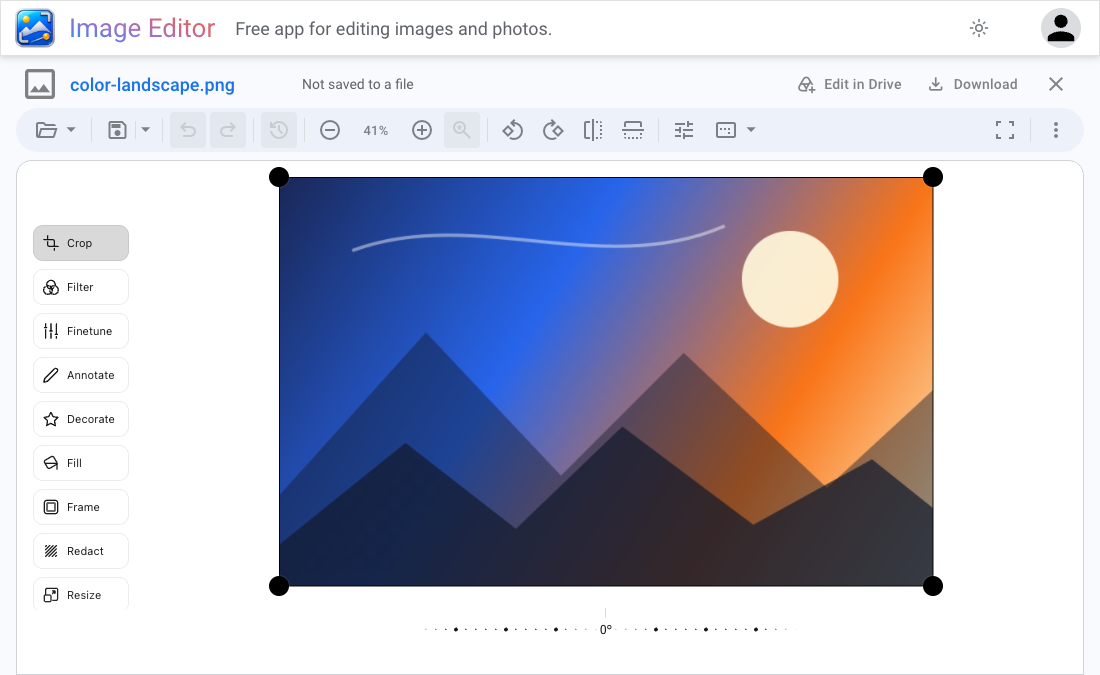
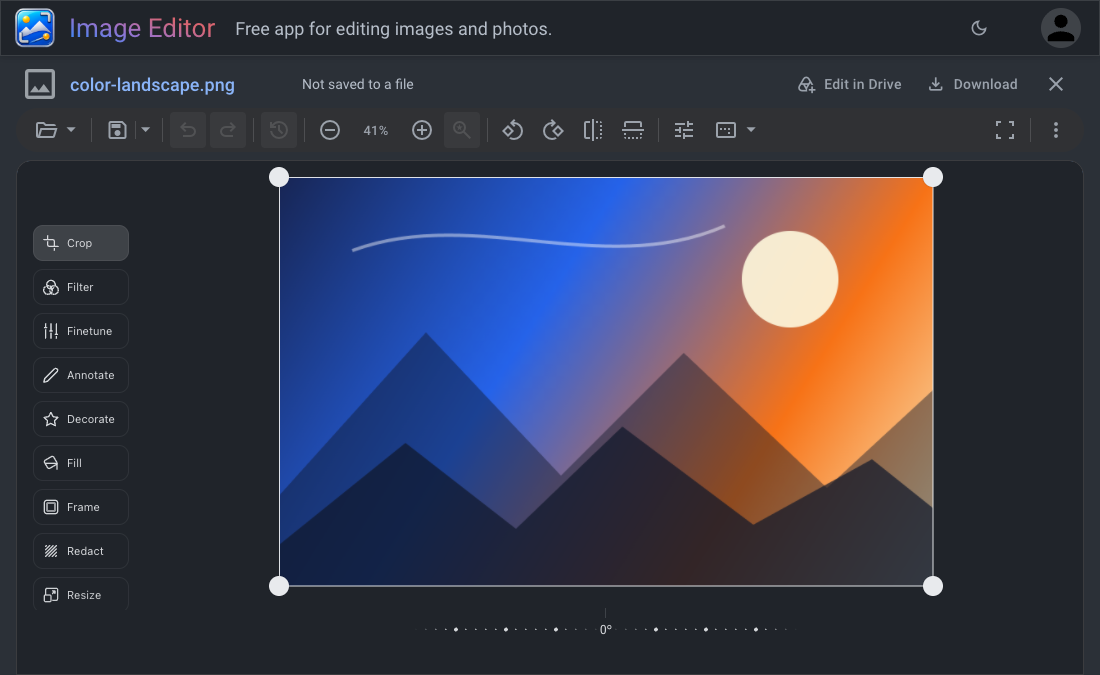
Crop
Remove unwanted edges or change the composition. Drag the crop handles around the part you want to keep, and move or scale the image inside the crop area until the framing looks right.
Rotate and flip
Straighten a tilted photo, turn it sideways, or mirror it. The toolbar's rotate and flip buttons handle the common cases in one click (a phone's toolbar has Rotate left and Flip horizontal; on a larger screen with the toolbar hidden or the editor full screen, the Crop tool shows its own rotate and flip buttons), and Crop's angle control helps with small horizon corrections.
Filter
Apply a ready-made color style to the whole image. Select a filter to preview it, or return to Default to remove the effect. Use Finetune when you want more control.
Finetune
Adjust brightness, contrast, exposure, saturation, temperature, gamma, clarity, and vignette. Make small changes and watch the preview; if a bright area loses detail, back the adjustment off.
Annotate
Draw on the image or add text, lines, arrows, and shapes. Annotations stay attached to the image, so they rotate and flip with it.
Fill
Choose the color behind transparent parts of an image. Keep the background transparent for PNG or WebP, or pick a solid color when preparing a JPEG. Without one, transparent areas end up on white.
Frame
Add a finished edge around the image. Frames become part of the exported pixels, so include their width when planning the final dimensions.
Redact
Drag over a name, number, face, or other visible detail you need to obscure. Redaction is rendered into the exported image, but always open the saved file and inspect it before sharing.
Saving, exporting, and image quality
An image opened from Google Drive with edit access autosaves as you edit. An image from your computer is written only after your first manual save, which grants file access or picks the destination; from then on it autosaves too. The status beside the filename shows what has been saved.
Save to the current file
Press Save, or use Ctrl+S (Cmd+S on a Mac). A writable PNG, JPEG, or WebP can be updated in place once the browser grants permission. Files opened from Google Drive save back to Drive when you have edit access.
Save a new file or a separate copy
Use the Save as... toolbar button to choose a new local filename and location. Edit in Drive, on the app bar, creates a Google Drive file and sends your future saves there; for a file already in Drive, Make a copy in the File menu saves the image as it is on screen to a new file beside the original (in My Drive when that folder can't take it) and opens that copy in a new tab, while the tab you are in stays on the file you had open. Download, on the toolbar and the app bar, saves the current result without leaving the file you were editing.
If the original changed somewhere else
Before overwriting a local or Drive file, Image Editor checks whether another app or person changed it since you opened or last saved it; if so, saving pauses, and you can keep your version, take the newer one, or save a separate copy.
Working with Google Drive and Gmail
Image Editor is built to work alongside Google Drive. Open an image from Drive with the Google file picker, edit it, and save it back to the same file when you have edit access. An image that started on your computer can move to Drive with Edit in Drive. For an image in Drive, Share on the app bar opens Google's sharing dialog, and the File menu's Google Drive flyout can move the file to another folder, open its Drive page, or locate it in its folder. Access uses Google's limited drive.file permission.
Image Editor also works with Gmail. Open an image attachment from Gmail and it loads in the workspace, where you can make changes and save a copy to Google Drive or your computer.
File formats, conversion, and compression
You can open JPEG, PNG, WebP, BMP, GIF, HEIC/HEIF, TIFF/TIF, and supported static SVG images. Image Editor always exports PNG, JPEG, or WebP; when a format can't be edited directly, the app converts it to PNG in your browser and explains what the conversion changes.
What happens to converted images
An animated GIF opens as its first frame, a multipage TIFF opens one supported image, and HEIC/HEIF container features such as HDR and depth data aren't carried into the export. SVG is rasterized, so the saved result is pixels rather than editable vectors.
Why converted images need a new file
Saving a still frame over an animated GIF, or pixels over a vector SVG, could destroy information you didn't mean to lose, so Image Editor asks you to create a new PNG, JPEG, or WebP. After that first save, you continue editing the new file.
Compression and visible quality
PNG preserves every exported pixel but can be large. JPEG and WebP use lossy compression for photographs, trading a little detail for a much smaller file; Image Editor uses a high-quality JPEG setting and a balanced WebP setting. Start from the best source you have, and avoid repeatedly resaving a JPEG when quality matters.
Pixels, dimensions, and transparency
Image size is measured in pixels; more pixels preserve more detail but cost memory and file size. Zoom changes only the workspace view, while Resize changes the exported dimensions, so resize near the largest size people will actually see. Transparent pixels survive in PNG and WebP but not JPEG; use Fill to choose the background color, or transparent areas end up on white.
Recovery drafts and recent images
After you pause, Image Editor keeps a recovery draft in this browser when storage is available, which can help after a reload, crash, or accidental tab close. A recovery draft is separate from your image file: the Draft saved to this device status means the local safety copy is current, not that the file itself was saved.
Save work you need to keep
Browser storage can be cleared, blocked, or run out of space, so use Save or a new-file command for work you need to keep. If the app says recovery storage is unavailable, editing still works, but save before closing the tab.
Reopen a recent image
The start page and the File menu's Open flyout list images you opened recently. Recent-file information stays in this browser, and you can remove entries or clear the list without touching the image files themselves.
Where your images are processed
Opening, decoding, editing, and rendering all happen locally in your browser. Google Drive actions send the image to or receive it from Google.
Metadata and visible information
Image Editor renders a fresh output and leaves common source metadata, including location and camera details, out of the exported file. Still inspect the picture itself for addresses, documents, reflections, or anything else you didn't mean to share.
Very large images
A compressed photo can expand to several times its file size while the browser decodes and edits it. If a large image won't open or the editor becomes slow, close other memory-heavy tabs or try a smaller copy.
History of Image Editors
Modern image editors grew out of early experiments with pixels and frame buffers. At Xerox PARC, Richard Shoup's SuperPaint produced its first stable image in 1973. It combined video input with virtual brushes, fills, palettes, shapes, and color controls, ideas still recognizable in the tools we use today.
MacPaint, released with the original Macintosh in 1984, brought raster editing to a wider personal-computer audience. Its mouse-driven tools, clipboard support, and magnified FatBits pixel view helped establish familiar ways to draw, select, copy, and edit one pixel at a time.
Thomas Knoll wrote the program that became Adobe Photoshop in 1987, and he and his brother John developed it until Adobe shipped Photoshop 1.0 for the Macintosh in 1990. Color controls, filters, plug-ins, and layers followed.
GIMP began as a Berkeley student project in 1995 and made its first public release in 1996, bringing advanced editing to a free and open-source community. Editors later moved to phones and web browsers, continuing the broader history of image editing without requiring a traditional desktop installation.
Frequently asked questions
Is Image Editor free, and do I need an account?
Image Editor is free to use. You don't need an account for images on your computer. Google sign-in is requested only when you use Google Drive.
Does Image Editor change my original automatically?
Once it can be saved safely, yes: a Drive image you can edit, or a computer file you have saved once, autosaves as you work. Autosave pauses if the file changed somewhere else, and converted formats require a new file.
Where can I learn more or get help?
Read the full FAQ, follow the Help guide, review the Privacy Policy, or email support@imageeditor.app.
Application Load Error
We're sorry - Image Editor was unable to load.
Please see the troubleshooting options below.
- Reload the page.
A simple refresh may resolve temporary loading issues. - Check your internet connection.
Even brief connectivity issues can prevent Image Editor from loading properly. - Open Image Editor in an Incognito or Private window.
This disables extensions that may interfere with Image Editor. - Temporarily disable browser extensions.
Ad blockers, antivirus plugins, or privacy tools are common causes of issues. - Clear your browser's cache and cookies.
This can fix problems caused by saved data from past visits. - Try a different browser or update your current one.
Image Editor works best in a current version of Chrome, Microsoft Edge, Firefox, or Safari.
Still not working?
If none of these steps resolve the issue, please email support@imageeditor.app with the error message below so we can assist you directly.